
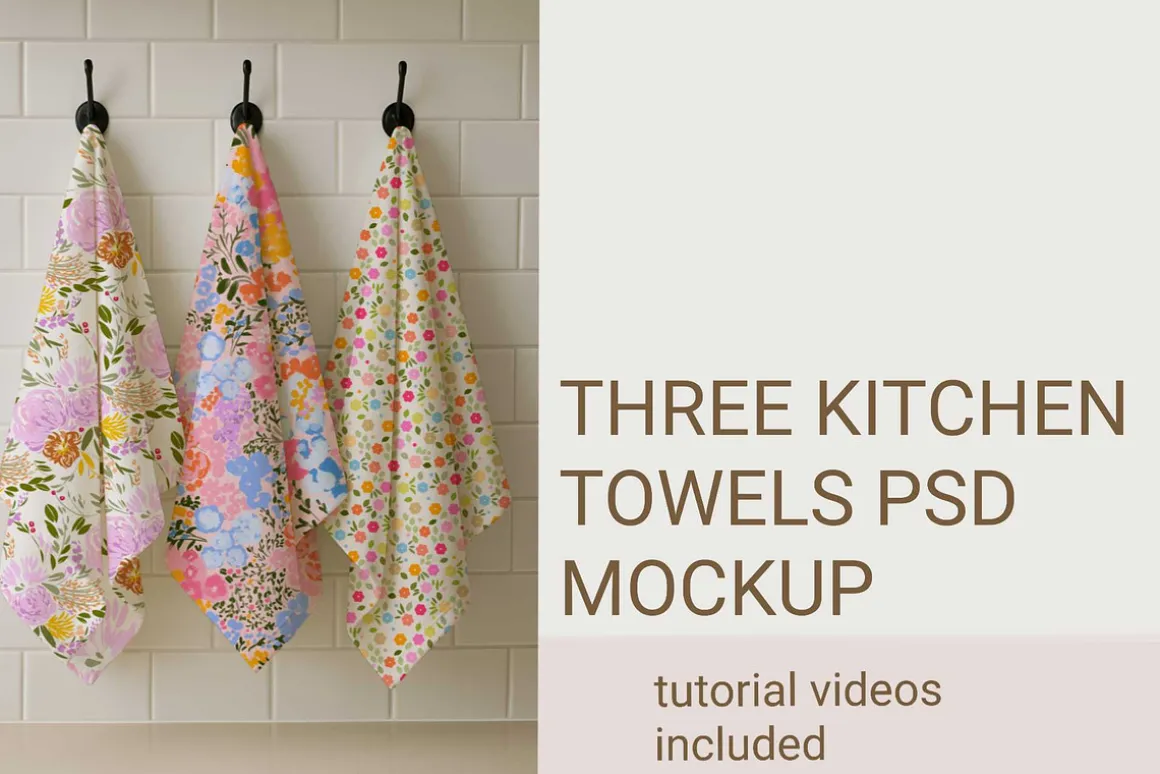
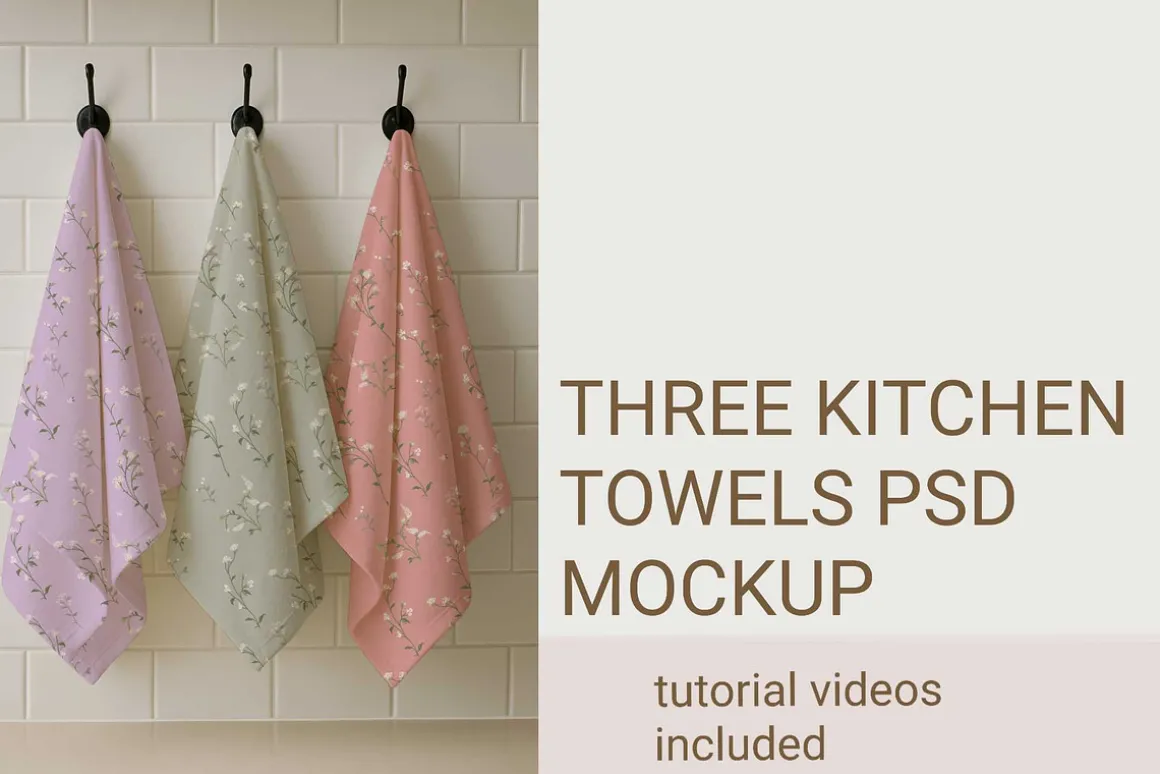
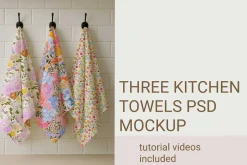
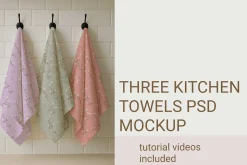
THREE COTTON KITCHEN TOWELS MOCKUP
7,99 $
About
Tutorials included in all mockups*
The designs you see here are available for licensing, and the mockups are ready for download in a convenient PSD format. It’s a different but elegant way to display your patterns.
FAQs
Does this mockup work in Adobe illustrator?
No. This mockup opens in Photoshop and Photopea.
Can I use any pattern regardless of what drawing programme used?
Absolutely. As long as the image is in JPG, PNG format, you should be fine. But please note, the mockup itself works only on photoshop/photopea. Not on Adobe illustrator.Please read the short instructions mentioned clearly in the tutorial and watch the tutorial videos if you need some guidance. I’m also here to help via message. I respond pretty quickly! 😊
QUESTIONS ASKED BY USERS
- “Can I make the mockup work using copy paste function?”
No. The mockup Instructions are very clear. First add your pattern in Photoshop/photopea (Instructions included) and then add the pattern to the product using “pattern overlay”.
Written and video tutorials included in every purchase.
- “Are tutorials included for both photoshop and photopea?”
Yes. Both video tutorials and written tutorials are included.
- “Does this mockup work in Adobe illustrator?”
No. It works in Photoshop and Photopea
- “Can I use any pattern regardless of what drawing programme used?”
Absolutely. As long as the image is in JPG, PNG format, you should be fine. But please note, the mockup itself works only on photoshop/photopea. Not on Adobe illustrator. Please read the instructions mentioned clearly in the tutorial and watch the tutorial videos if you need some guidance. I’m also here to help via message. I respond pretty quickly! 😊
- “Can I make the mockup work using copy paste function?”
No. The mockup Instructions are very clear. First add your pattern in Photoshop/photopea (Instructions included) and then add the pattern to the product using “pattern overlay”. Written and video tutorials included in every purchase.
- “Does this mockup use smart objects?”
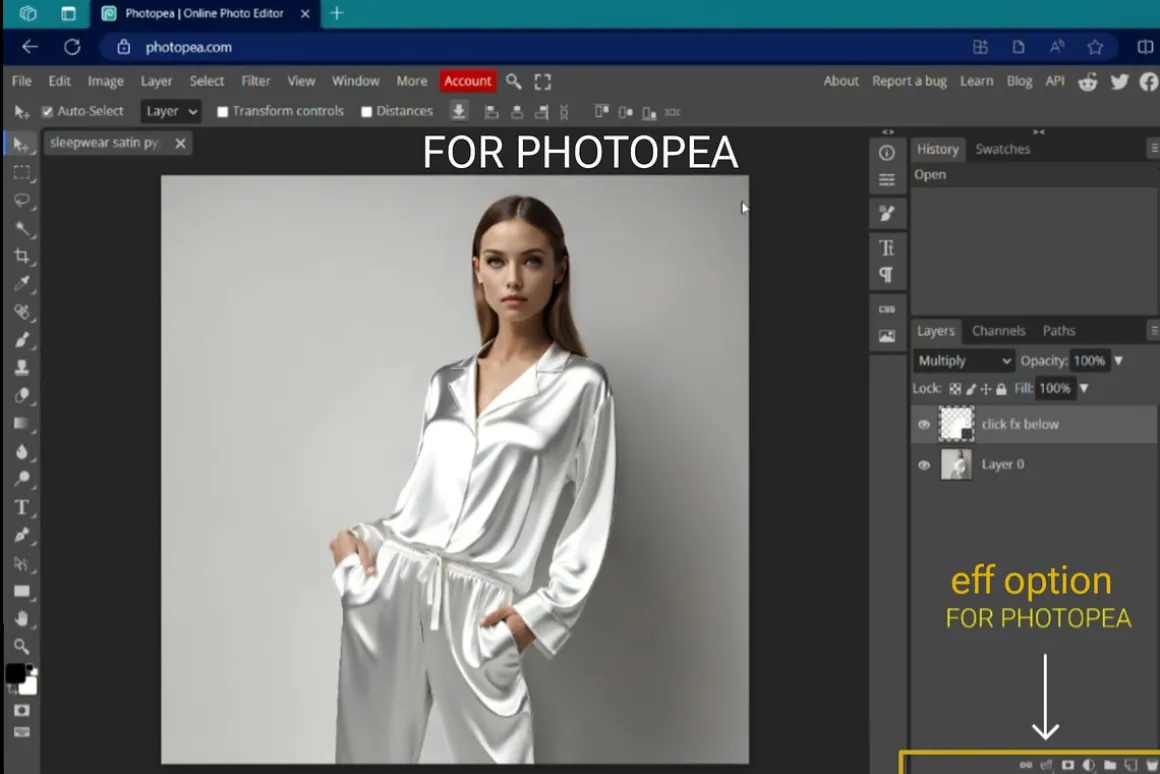
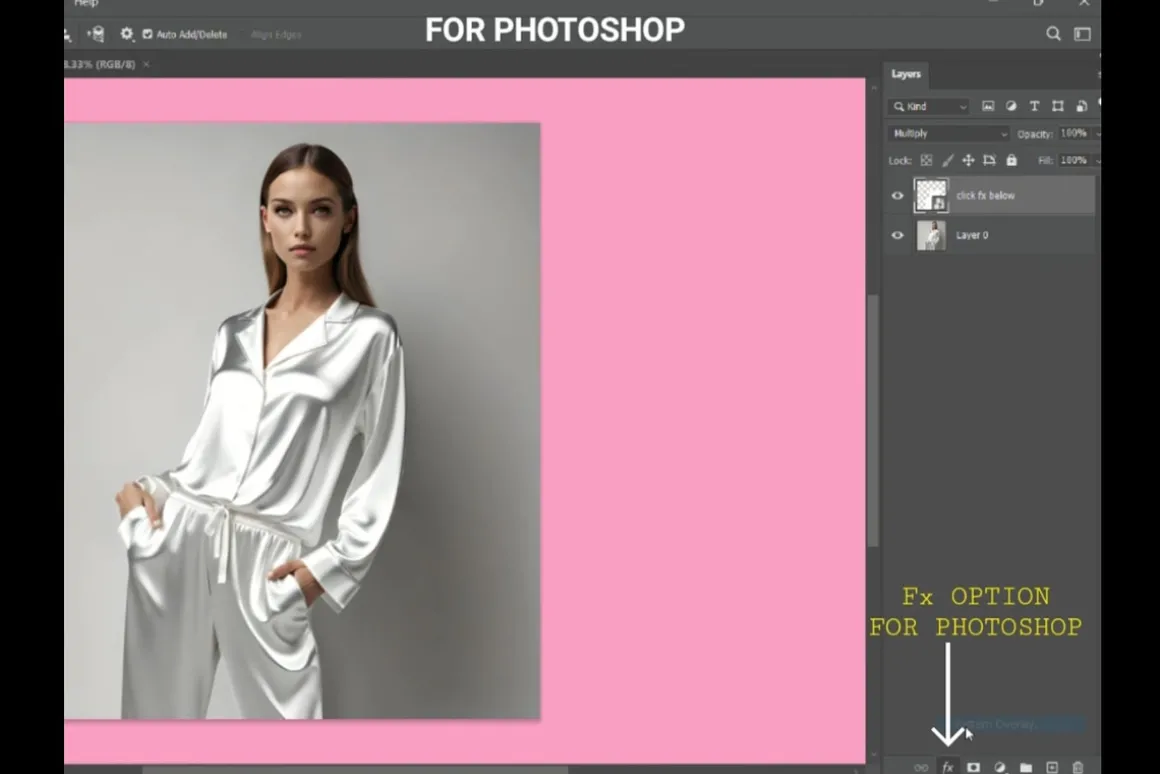
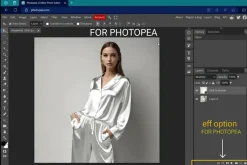
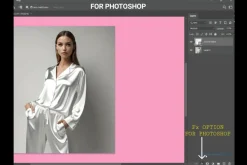
Even though it has a smart object option, it works only through the fx option under each smart object. The fx option is in the listing images. I have added screenshots in the listing images,
STEPS TO USE THE MOCKUP below-HOW TO USE?PART 1- DEFINING THE PATTERN 1. OPEN YOUR IMAGE/PATTERN IN PHOTOSHOP 2. GO TO EDIT AND CLICK DEFINE PATTERN
PART 2- USING THE PSD
- FIRST OPEN THE PSD IN PHOTOSHOP 2. IN YOUR LAYERS, FIND THE OPTION “fx” DOWN BELOW AND CLICK IT. 3. NEXT YOU WILL BE ABLE TO SEE AN OPTION CALLED “PATTERN OVERLAY” 4. SELECT YOUR PATTERN FROM THE LIST, MAKE SURE THE ANGLE IS ADJUSTED ACCORDING TO YOUR PREFERENCE. 5. PRESS OK/SAVE 6. THEN CLICK “FILE” ON TOP LEFT , SCROLL DOWN AND CLICK SAVE 7. YOUR MOCKUP IS READY TO USE!
- “Can I only use the smart objects to place my art on the towel?”
No. It works through the fx option in (photoshop) and eff in (photopea) present in the layer. I have added two screenshots in the listing to show you where the fx option is located in photoshop. It takes less than a minute to place your patterns on the mockup. But please follow the tutorial provided in video and written format.
Tutorials added now in the files!
This PSD works in Photoshop and Photopea. Please do not resell the mockup. Thank you!
| Pick | Commercial, Extended Commercial, Personal |
|---|
Be the first to review “THREE COTTON KITCHEN TOWELS MOCKUP”
Related products
Magazines
Device Mockups
Cover Letters
Books & Magazines

Books & Magazines
Holidays & Events
Job Search
Business Cards
Holidays & Events
Holidays & Events


Device Mockups
Brochures

Photoshop
Device Mockups
Reviews
There are no reviews yet.